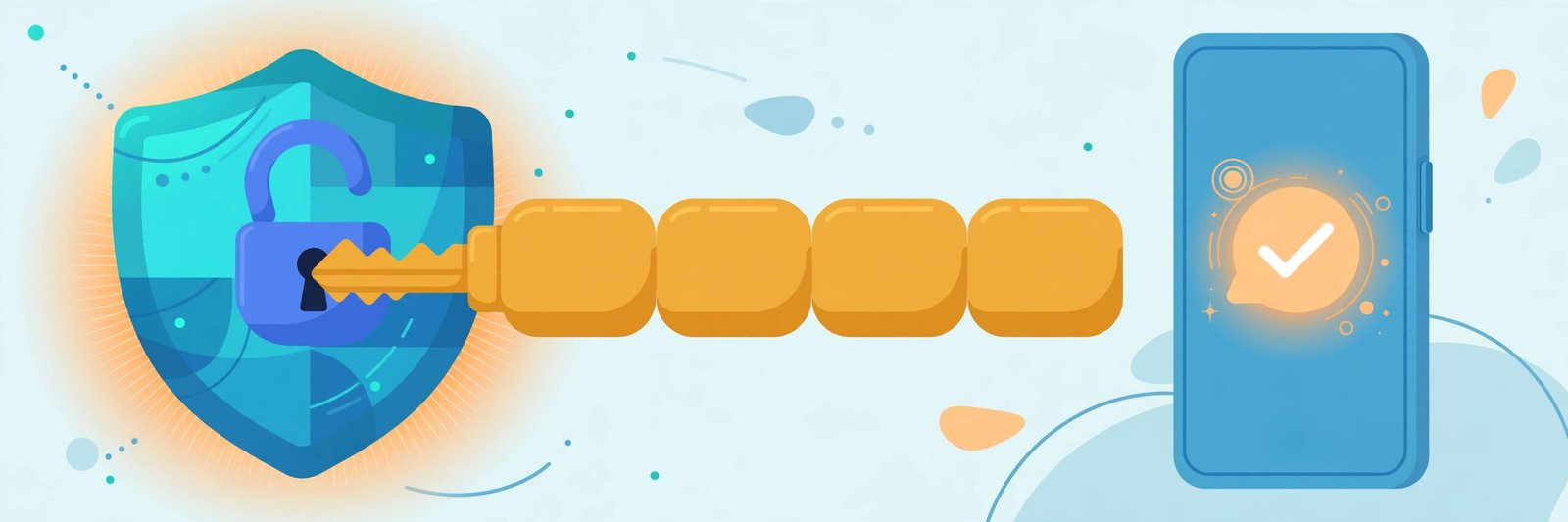
Most account hacks do not begin with a genius hacker breaking through a firewall. They begin with something simpler: a weak password, or one strong password reused everywhere and leaked from a single careless website. Learning how to create a strong password — and protecting it with two-factor authentication — is the cheapest, most effective security upgrade any of us can make. It costs nothing and takes an afternoon.
This guide explains what makes a password strong, a simple method to create one you can remember, how password managers remove the memory problem, and how to switch on 2FA step by step.
Before you set up 2FA, it helps to see the full picture of how to create a strong password that actually holds up: our guide on How to Protect Your Phone from Hackers explains the phone-side risks that weak passwords invite, and our ChatGPT Prompts for Productivity guide shows how to ask an AI assistant for help without ever pasting real passwords into it. For the official rules on passwords, see Google’s official guide on how to create a strong password. Once you know how to create a strong password, the passphrase method below becomes much easier to put into practice.
What Actually Makes a Password Strong: How to Create a Strong Password
Forget the confusing rules you may have seen. Strength mostly comes down to three things:
- Length. A longer password takes far more effort to guess or crack than a short one full of symbols. Length is the biggest factor.
- Unpredictability. Passwords built from personal details — name, birthday, phone number, your child’s name — are the first things an attacker tries, because much of that sits on social media. Common words and obvious patterns are equally weak.
- Uniqueness. Every account needs its own password. When one website leaks its data, criminals test those same email and password pairs on banking and shopping sites. A unique password limits a leak to one account; a reused one hands over all of them.
Notice what is missing: complicated symbol soups you cannot remember. A password you must write on a sticky note has failed at its job.
How to Create a Strong Password: The Passphrase Method
A passphrase is a string of random, unrelated words joined together. Because it is long, it is strong. Because it is made of real words, a human can actually remember it. Here is the method:
- Pick four or five unrelated words. Choose words with no connection to each other or to your life — imagine opening a book at random pages. The randomness is the strength.
- Join them with separators. Hyphens or other symbols between the words, plus a number somewhere, make it harder to guess while staying readable to you.
- Check it looks nothing like your life. No names, no places you live, no favourite teams. If a friend could guess the words by knowing you, start again.
- Use it for one important account only. Your passphrase is ideal for a password manager’s master password (explained next) and perhaps your primary email — the keys that guard everything else.
- Never copy an example passphrase from any article, including this one. Any published example is known to everyone. Use the method, not someone else’s words.
That is the whole secret of how to create a strong password a normal person can live with: long, random, and yours alone.
Password Managers: The Memory Problem, Solved
Knowing how to create a strong password is only half the battle — nobody can memorise forty unique passphrases. Password managers solve exactly that problem.
A password manager stores all your passwords in an encrypted vault. It generates long, random passwords for every account, remembers them, and fills them in when you log in. You remember only one thing: the strong master passphrase guarding the vault, protected by 2FA as described below.
Many phones and browsers include a built-in password manager, and dedicated apps also exist. Either is a large step up from reusing passwords or keeping them in a notebook or phone note. If one vault feels risky, compare it with the alternative most people actually use — the same password everywhere — and the vault wins easily.
Setting Up 2FA After You Create a Strong Password: Step by Step
Two-factor authentication (2FA) adds a second proof of identity after your password — usually a code from your phone. Even if a criminal steals your password, they cannot get in without that second step. Menu names differ between services, but the flow is almost always the same:
- Open the account’s Settings and find the Security or Privacy section.
- Look for Two-Factor Authentication, Two-Step Verification, or similar wording.
- Choose your method: an authenticator app or SMS codes (the next section explains which to prefer).
- Enter the code shown on your phone to confirm setup works.
- Save the backup codes the service offers — the step people skip and later regret.
Apply this first to the accounts that matter most: your primary email (it can reset everything else), banking and payment apps, and main social media accounts. Banking apps often use built-in approval steps, so follow the prompts inside the official app.
Authenticator App vs SMS Codes: Which Is Better?
- SMS codes arrive by text message. They are easy and far better than no second factor at all. Their weakness is dependence on your phone number — SIM-swap fraud targets exactly that link.
- Authenticator apps generate time-based codes on your device itself. They work without network coverage, are not tied to your SIM, and are generally considered the stronger option. Most major services support them.
Practical rule: use an authenticator app wherever offered, keep SMS as backup where allowed, and treat any unexpected code on your phone as a warning sign, not a nuisance.
Backup Codes: The Safety Net People Ignore
When you enable 2FA, most services offer one-time backup codes for the day your phone is lost or replaced. Save them somewhere safe and offline — printed, with your important documents at home — not in the same phone they are meant to rescue you from. Each code works once, and you can generate a fresh set in your settings. Ten minutes on this today can be the difference between a minor inconvenience and being locked out of your accounts.
Common Mistakes to Avoid When You Create a Strong Password
- Reusing one password across accounts. The most damaging habit of all. One leaked website should never mean your email and bank are open too.
- Sharing an OTP with anyone. No bank, company or official will ever call and ask for your OTP, PIN or password. Anyone who asks is a criminal, whatever story they tell. Our phone security guide warns about this same fraud pattern.
- Saving passwords in phone notes or photos. Notes apps and galleries are not encrypted vaults, and are often the first places checked on a stolen phone.
- Skipping 2FA on email. Your inbox is the master key to password resets for almost everything. If one account gets 2FA, it should be this one — knowing how to create a strong password matters little if your reset path is unguarded.
- Using personal details as passwords. Birthdays, anniversaries, vehicle numbers and pet names are guessable from social media in minutes.
Frequently Asked Questions
How long should a password be?
Aim for length above everything else. A passphrase of four or more random words gives you a long password that is still memorable — which is why security professionals recommend the approach. If a service limits length, use its maximum.
Is it safe to save passwords in my browser?
Browser password saving is convenient and much safer than reusing weak passwords. For stronger protection, prefer a password manager protected by a strong master passphrase and 2FA, and keep your device locked. Never save banking passwords on a shared computer.
What if I lose the phone that has my authenticator app?
This is what backup codes are for: use one to sign in, then set up 2FA again on your new phone and generate fresh codes. Without saved codes, you face the service’s slow account recovery process. Save them now, while everything works.
Someone called asking for an OTP for “verification.” What should I do?
Hang up and share nothing. Genuine banks and companies never ask for OTPs, PINs or passwords on a call. If you have already shared details or lost money, report it quickly on the national cybercrime helpline 1930 or at cybercrime.gov.in, and inform your bank — quick reporting improves the chances of stopping the money.
Conclusion: How to Create a Strong Password That Lasts
Security does not have to be complicated. Learn how to create a strong password using the passphrase method, let a password manager carry the load, switch on 2FA starting with email and banking, and save your backup codes somewhere safe. Those four habits, done once, quietly protect almost everything you do online. Start with your email today — it is the key to all the others.
Leave a Reply