Quick Summary Box
If you are short on time, here is a quick breakdown of the top options available right now.
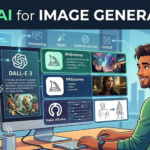
| Feature | Midjourney | DALL-E 3 (via ChatGPT) | Stable Diffusion (XL/3) |
| Best For | Photorealistic & Artistic Images | Simple Prompts & Exact Text | Total Control & Free Offline Use |
| Price | Paid (Starts at $10/mo) | Free (Limited) / Paid ($20/mo) | Free (Open-source) / Paid Cloud |
| Difficulty Level | Medium (Uses Discord/Web UI) | Very Easy (Conversational) | Hard (Requires technical setup) |
| Key Benefit | Highest visual quality out-of-the-box | Understands complex English perfectly | Endless customization with control nets |
Table of Contents
The Struggle to Find the Right Visuals
Imagine you are launching a new blog or designing a landing page for a client. You need a specific image: a cozy coffee shop under a starry night sky, with neon purple lighting and a vintage typewriter on the table.
You open standard stock photo websites. You search for twenty minutes. You scroll through hundreds of generic, boring photos. None of them match the vision in your head. The perfect shot simply does not exist.
This is where finding the best ai for image generation changes everything. Instead of searching for an image that someone else took, you can simply type a description and watch a brand-new image appear on your screen within seconds.
But with so many apps launching every week, it is easy to get confused. Some tools cost a lot of money, some are free but hard to use, and others make images that look weird or unnatural. This guide will help you understand how these tools work and which one actually fits your daily needs.
What Is AI Image Generation?
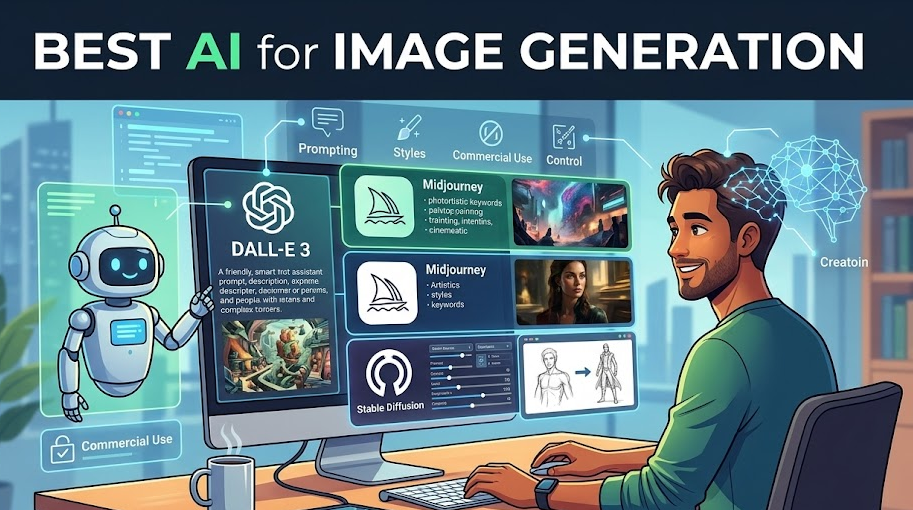
At its simplest, AI image generation is a technology that turns written words into visual pictures. You type a sentence—called a “prompt”—and a computer program analyzes your text to create a completely unique digital image from scratch.
Why People Use These Tools
- No Drawing Skills Needed: You do not need to know how to use complex design software or hold a paintbrush. If you can describe it, you can create it.
- Saving Time: Creating a custom graphic manually can take hours or days. An AI tool gives you multiple options in less than a minute.
- Cost-Effective: Hiring professional photographers or buying premium stock licenses for every single blog post can get expensive quickly for small businesses.
Key Features to Look For
When trying to find the best tool for your work, keep an eye on these four important factors:
- Prompt Understanding: How well does the tool listen to your specific instructions?
- Text Rendering: Can the tool actually spell words correctly inside the image? (For example, making a storefront sign that reads “Open”).
- Speed and Resolution: How fast does it generate, and is the final image clear enough to print or upload?
- Aspect Ratio Control: Can you easily make vertical images for phone screens and wide images for websites?
How It Works (Without the Boring Tech Jargon)
Think of an AI image generator like a digital artist who has looked at billions of pictures on the internet.
When you type “a golden retriever wearing a blue birthday hat,” the system does not copy-paste an existing photo. Instead, it remembers what a “golden retriever” looks like, what a “birthday hat” looks like, and how the color “blue” works. It starts with a blank canvas covered in digital static (noise) and slowly cleans up that static until a crisp, clear image of the dog appears.
Deep Dive: The Top 3 AI Image Generators
Let us look closely at the three major platforms that dominate the industry right now. Every tool has things it does perfectly and areas where it struggles.
1. Midjourney: The Artist’s Choice
Midjourney is famous for creating the most stunning, highly detailed, and cinematic images available. If you want a photo that looks like a real camera captured it, or a painting that looks like it belongs in a gallery, this is usually the top choice.
Practical Scenario
A fantasy book writer wants to create a cover concept showing a hidden castle inside a misty valley. While other tools might make a clean, cartoonish version, Midjourney adds realistic atmospheric fog, intricate brick textures on the castle walls, and beautiful natural lighting that makes the scene feel alive.
Limitations
For a long time, Midjourney only worked inside an app called Discord, which felt confusing to non-gamers. While they now have a dedicated website, it still requires a paid subscription to use regularly. It also occasionally ignores specific layout commands if it thinks a different composition looks “prettier.”
2. DALL-E 3: The Easiest to Use
Created by OpenAI, DALL-E 3 lives right inside ChatGPT. Its biggest superpower is its brain. You do not need to learn special code words or styling tricks. You can talk to it like a regular human being.
An Observation
If you ask DALL-E 3 to draw “a mouse sitting on an apple, looking left, with a small yellow backpack on its back,” it will almost always get every single detail right. Other tools might forget the backpack or put the mouse next to the apple instead of on top of it.
Limitations
DALL-E 3 images can sometimes look a bit too clean, shiny, or “digital.” If you are trying to create a photo that tricks people into thinking it is a real snapshot, DALL-E 3 might look a little too much like a 3D animation or a glossy vector illustration.
3. Stable Diffusion: Total Creative Freedom
Stable Diffusion is open-source. This means the code is free for anyone to download and run on their own computer, provided they have a powerful graphics card (GPU).
A Common Benefit Users Report
Because it is open-source, the community has built thousands of free add-ons. You can use a feature called “ControlNet” to sketch a rough stick figure on your screen, and Stable Diffusion will turn that exact pose into a fully rendered character. You have absolute power over every single pixel.
Limitations
The learning curve is steep. Setting it up on your computer requires reading technical guides, installing Python files, and dealing with error messages. If you just want to click a button and get a fast result without learning how computer hardware works, this tool will feel overwhelming.
[Insert Feature Screenshot Here]
Step-by-Step Guide: How to Get Started
Creating your first image is simple if you follow these basic steps. We will use a general approach that works for almost any platform.
Step 1: Define Your Core Subject
Start with the main focus of your image. Keep it simple.
- Example: A vintage sports car.
Step 2: Add Environmental Details
Where is the subject? What is happening around it?
- Example: A vintage sports car driving down a wet city street at night.
Step 3: Specify Lighting and Atmosphere
Lighting changes the entire mood of a picture.
- Example: A vintage sports car driving down a wet city street at night, surrounded by bright neon signs reflecting in puddles.
Step 4: Choose the Style
Do you want a photograph, a watercolor painting, a 3D render, or a minimal line drawing?
- Example: A realistic, cinematic photograph, 35mm lens.
Step 5: Generate and Refine
Click the generate button. If the first result isn’t perfect, adjust your words. If the wheels look strange, add details like “clean chrome rims” to guide the computer.
Pros and Cons Comparison
To help you decide at a glance, here is a breakdown of the benefits and drawbacks of each major platform.
Midjourney
- Pros: Highly realistic textures, incredible lighting effects, beautiful artistic styles out-of-the-box.
- Cons: No permanent free version, can be tricky to navigate for beginners, struggles with precise text.
DALL-E 3
- Pros: Extremely easy to use, understands complex instructions, excellent at writing words inside images.
- Cons: Images can look overly stylized or cartoonish, limited options to modify existing images.
Stable Diffusion
- Pros: Free to run locally, no censorship or strict word filters, ultimate community tools and plugins.
- Cons: Requires an expensive computer with a strong GPU, complicated user interface to learn.
Common Mistakes Users Make
- Writing Paragraphs Instead of Prompts: Telling a tool a long, emotional backstory about a character does not help it draw. Stick to describing what can actually be seen visually.
- Ignoring the Aspect Ratio: By default, most systems make square images ($1:1$). If you need a website banner, remember to change the settings to wide ($16:9$) before generating to avoid awkward cropping later.
- Expecting Perfect Human Hands: AI models still occasionally struggle with fine details like human fingers, teeth, or complex knots. If a hand looks strange, try generating a new variation or cropping closer to the face.
Frequently Asked Questions
1. Can I use these images on my monetized blog or website?
Yes. Most commercial platforms grant you full rights to use the images you generate for blogs, ads, books, and merchandise. Always check the specific terms of service of the plan you pay for.
2. Do I need a powerful computer to generate images?
For tools like Midjourney and DALL-E 3, no. All the heavy computational work happens on their cloud servers. You can use them on an old laptop or even a smartphone. Only Stable Diffusion requires a heavy local computer setup.
3. Why does the AI sometimes spell words completely wrong?
AI does not read letters the way humans do; it views words as patterns. When it tries to recreate text, it treats letters like visual shapes, which can lead to scrambled spelling or strange alien-looking characters.
4. Is there a completely free AI image generator?
Yes. Platforms like Microsoft Designer and Adobe Firefly offer free tiers or credits. You can also use DALL-E 3 for free through Microsoft Copilot.
5. What happens if two people type the exact same prompt?
They will get completely different images. The system uses a random starting point (called a “seed”) every time, meaning the results are always unique.
6. Can these tools copy a real artist’s style?
You can mention specific styles like “in the style of Van Gogh,” and the tool will mimic the brush strokes and color choices based on public art history data.
7. How do I get high-resolution images for printing?
Most standard outputs are good for screens but too low for large prints. You can use free web tools called “AI Image Upscalers” to double or triple the resolution without losing quality.
8. Can I upload my own photo and change the background?
Yes. This is called “Inpainting.” Tools like DALL-E 3 and Stable Diffusion let you brush over an area of an uploaded photo and replace it with something else using a text command.
9. Why do human faces sometimes look distorted?
If the subject is too far away in the background, the tool has fewer pixels to work with on the face, causing features to blur. Keeping your subject closer helps fix this issue.
10. Which tool is best for making logos?
DALL-E 3 or Adobe Firefly work best for logos because they handle clean vectors, simple backgrounds, and basic text formatting much better than purely artistic tools.
Final Thoughts: Which One Should You Pick?
Choosing the best ai for image generation comes down to what you plan to build and how much time you want to spend learning the software.
- Who should use DALL-E 3: Marketers, bloggers, and content creators who need fast, accurate images without spending hours tweaking settings or learning code words.
- Who should use Midjourney: Designers, digital artists, and publishers who need breathtaking visual depth, cinematic realism, and beautiful lighting for premium projects.
- Who should use Stable Diffusion: Tech-savvy users, developers, and hobbyists who want complete control over their workflows, zero subscription fees, and have a strong computer to support it.
The best way to find out is to try a free trial on one of the conversational web platforms today. Start with a simple prompt, see how it responds, and let your creativity take over from there.
Authoritative External References
- Check out the official OpenAI DALL-E 3 Product Page to see the latest model updates and prompt capabilities.
- Read the Midjourney Documentation Quick Start Guide to learn how to navigate the system’s web interface and Discord servers.
- Explore the Stability AI Hub to download open-source base models and view developments in the open-source community.